
Introduction
Whether you are using Charity Bridge Fund on a phone, tablet, or computer, most issues can be resolved with a few quick checks. This guide walks through the most common problems users run into, including login issues, loading problems, unresponsive buttons, upload errors, and trouble claiming a charity. It also explains what to capture before contacting support so your issue can be reviewed faster.
Start with these quick checks
Before trying more detailed steps, go through these basic checks first:
Refresh the page
Close and reopen your browser
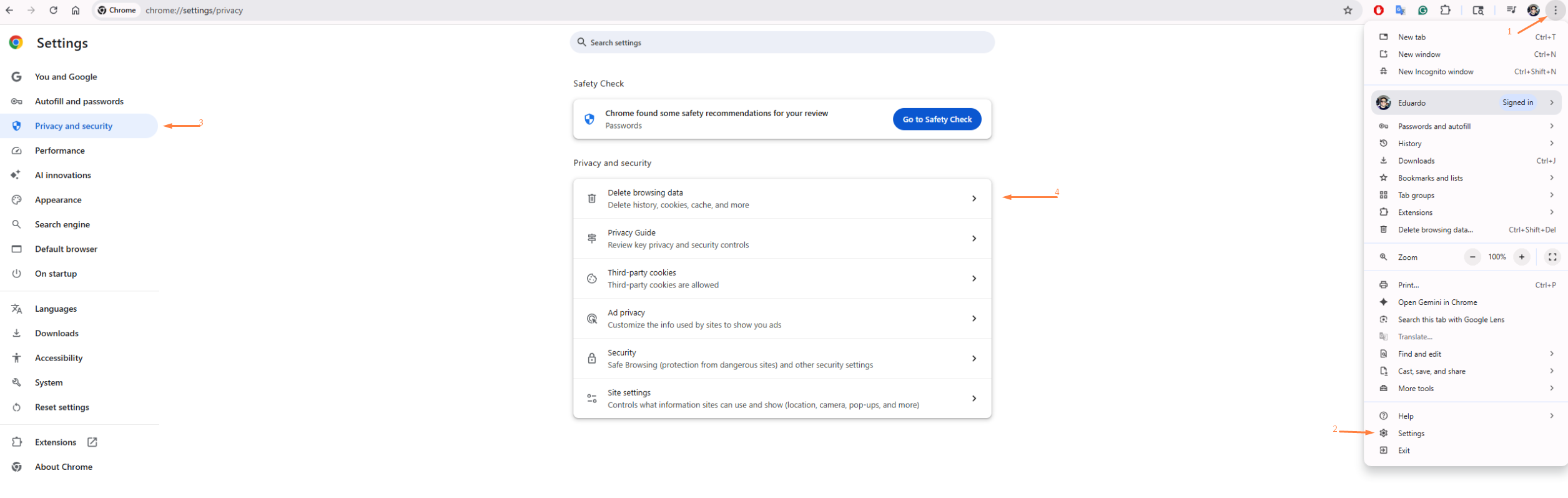
Clear your browser cache and cookies
Make sure your browser is up to date
Try a supported browser such as Chrome, Safari, or Firefox
Switch networks if the site seems slow or does not load
On mobile, rotate your device or try desktop mode if something looks off
These steps solve many temporary issues and are the best place to start.
Can’t access your account or log in
Get help with common account access issues, including login problems, incorrect credentials, browser session conflicts, and device-related errors that may prevent you from signing in successfully.
Incorrect email or password
Double-check that you are using the correct email address and password. If needed, use the "Forgot Password" option on the login page before trying again.
Saved browser data is interfering
Sometimes login issues come from old session data. Clear your browser cache and cookies, close the browser completely, then reopen it and try again.
Mobile login is not working properly
If you are on a phone or tablet and the login flow seems stuck, switch your browser to desktop mode and try again. Some forms work more reliably in the desktop version of the site.
You still cannot access the account
If the issue continues after checking your credentials and clearing browser data, contact support and include the browser you are using, whether you are on mobile or desktop, and a screenshot of what you see.
The site is not loading or is behaving strangely
When the site does not load correctly, appears outdated, or behaves inconsistently, the cause is often cached data, connection issues, or browser-specific behavior.
Try these fixes in order and keep testing in between steps:
Refresh the page
Open the site in a new tab
Clear your browser cache and cookies
Switch to another supported browser
Check your internet connection or switch between Wi Fi and mobile data
On mobile, try desktop mode
On desktop, open developer tools, go to the Network tab, check Disable cache, then refresh the page
If the problem only happens on one browser, that detail is useful to share with support.
Buttons are not working, or files will not upload
If links, buttons, or uploads are failing, work through the issue based on what you are trying to do.
For buttons or links that do not respond:
Refresh the page
Make sure pop-ups are enabled if the action opens a new window
Clear your browser data
On mobile, try desktop mode
On desktop, try another browser
For document uploads:
Confirm the file is a PDF if the form requires a document
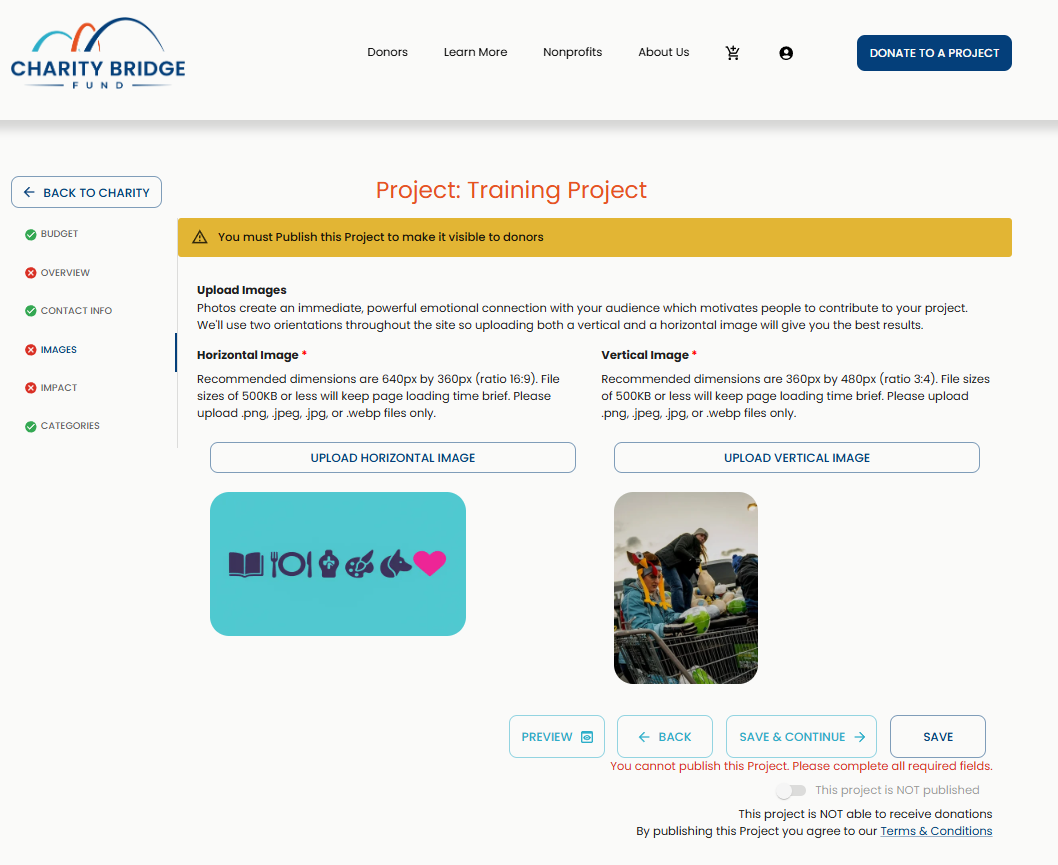
Keep the file size as light as possible, ideally under 500 KB when possible
Rename the file if it includes unusual characters
Try again in another browser
If you are on mobile, switch to desktop mode or move to a computer if the upload still fails
For image uploads:
Vertical images: 360px by 480px, ratio 3:4
Horizontal images: 640px by 360px, ratio 16:9
Keeping files optimized helps the page load faster and reduces upload failures.
Trouble claiming a charity
If you see an error while trying to claim a charity, the issue is not always the EIN itself. The claim can fail because of eligibility, incorrect information, or an account mismatch.

The EIN was entered incorrectly
Enter the EIN exactly as issued by the IRS. Accepted formats include 123456789 and 12-3456789. Common problems include missing digits, transposed numbers, extra spaces, or other added characters.
The organization is not showing as an active 501(c)(3)
Charity claims are verified against IRS records for organizations recognized as tax-exempt under section 501(c)(3). If the organization is not currently recognized that way, the claim request may fail.
IRS records may not be updated yet
If the organization was recently approved, the IRS database may not yet reflect that status. In that case, the error may continue even if the EIN is correct.
You are logged into the wrong account
A claim can also fail if the user is logged into a different account than the one intended for the claim flow. If the code, account, or email context does not match, the request may not go through.
What to do next
Use this order:
Confirm the EIN is entered correctly
Confirm the organization is an active 501(c)(3)
Make sure you are logged into the correct account
Stop retrying if the same error continues
Contact with the organization’s legal name, the EIN entered, and a screenshot of the error
Before contacting support
If the issue is still not resolved, sending clear details the first time can speed up the review process.
Step 1: Take a regular screenshot
Windows
Press PrtScn for the full screen, or Windows + Shift + S to capture part of the screen.
macOS
Press Command + Shift + 3 for the full screen, or Command + Shift + 4 to capture a selected area.
iPhone and iPad
Use the standard button combination for your device model, then find the screenshot in the Photos app.
Android
Most devices use Power + Volume Down. Screenshots are usually saved in the Gallery or Photos.
Capture the error message, page area, or form state clearly so support can see what happened. When possible, please send an uncropped screenshot that shows the full page, including the browser’s URL bar.
Step 2: Capture a browser console screenshot if requested
This is mainly for desktop users when support needs more technical detail.
Go to the page where the problem happens
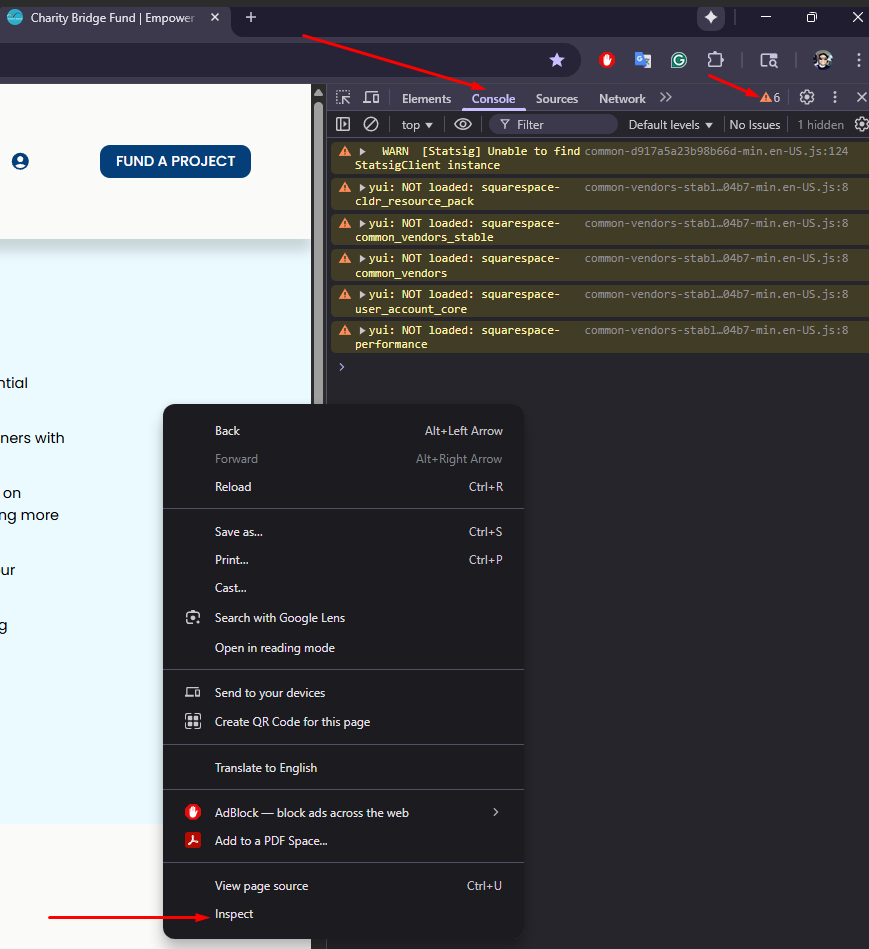
Open developer tools:
Windows: Ctrl + Shift + I
Mac: Command + Option + I
Click the Console tab (Top menu of the window that just opened)
Refresh the page while the console is open (Push F5 or Command (\⌘) + R)
Look for visible errors or warnings
Take a screenshot that shows the console messages clearly
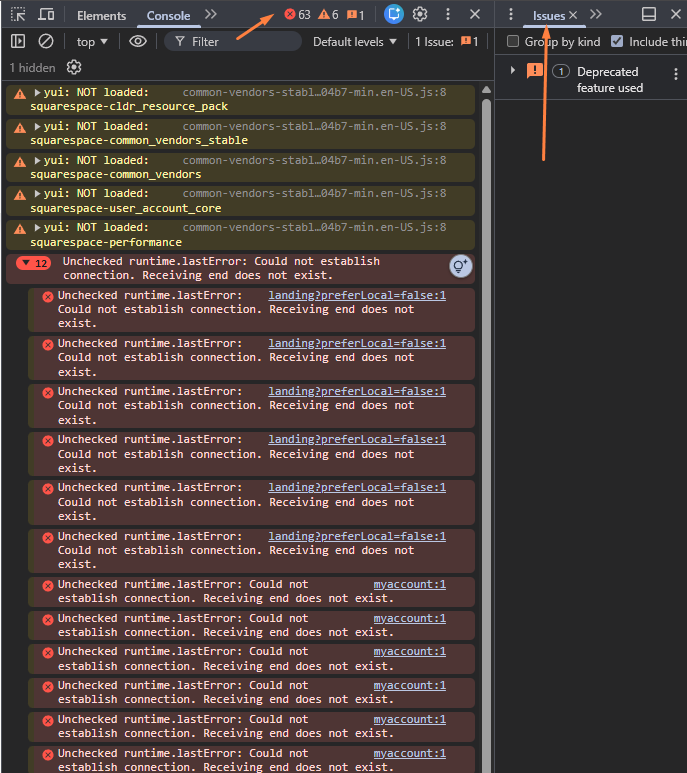
If possible, include the page URL in the screenshot and avoid showing personal or sensitive information.
Step 3: Include the right details in your message
When reaching out, include:
A short description of the problem
What you were trying to do
Whether you were on mobile or desktop
Your device type
Your browser name
Screenshots of the issue
A browser console screenshot if support asked for it
For claim issues, your organization’s legal name and EIN
FAQ
Why is Charity Bridge Fund not loading properly?
This is usually related to cached browser data, connection issues, or browser-specific behavior. Refresh the page, clear cache and cookies, and try another supported browser.
Why can I log in on one device but not another?
Saved session data, browser settings, or mobile layout behavior can affect the login flow differently across devices.
Why are buttons or forms not working on mobile?
Some actions are easier to complete in desktop mode on a mobile browser, especially longer forms or dashboard-related actions.
Why is my upload failing?
The issue may be file type, file size, browser behavior, or device limitations. Confirm the file meets the requirements, then retry in another browser or on desktop.
Why does my charity claim fail even when the EIN looks correct?
The issue may be IRS eligibility, delayed record updates, or being logged into the wrong account during the claim process.
Most issues on Charity Bridge Fund can be resolved by refreshing the page, clearing browser data, switching browsers, or retrying the action from a more stable device or view. If the issue continues, sending the right screenshots and device details will help our team review the problem more quickly and get you to the right next step.