
Overview
Charity Bridge Fund uses BILL to manage fund distributions securely, trackably, and compliantly. This ensures that funds are delivered to verified organizations, transactions are properly recorded, and distributions are processed efficiently once they become available.
By relying on a standardized system, we’re also able to reduce manual errors and minimize delays, while keeping costs low and maintaining the functionality needed to support reliable payouts.
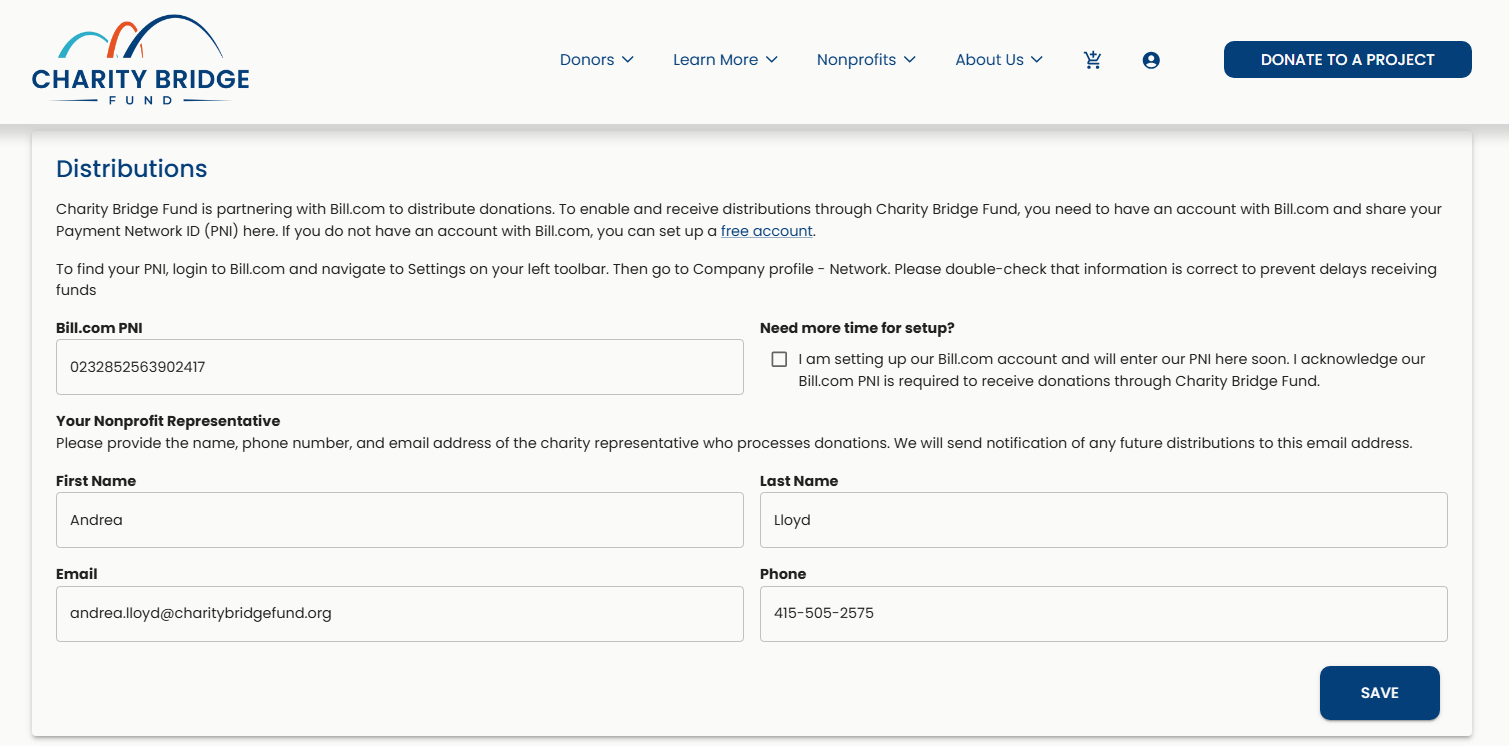
To receive funds through Charity Bridge Fund, nonprofits must provide a valid BILL Payment Network ID (PNI) in the Distribution section of their charity profile.
Where This Fits in Your Setup
As you complete your charity profile, you will come across the Distribution panel, where you can add your PNI. This step is designed to ensure your organization is ready to receive funds when the time comes.
Getting Your BILL Payment Network ID (PNI)
Setting up a BILL account is free for nonprofits and only takes a few steps. Once your account is active, you’ll be able to retrieve your Payment Network ID. Use this link for quick access: Bill.com's Onboarding Flow
You must create and complete your BILL account directly through BILL before you can obtain your Payment Network ID (PNI). Charity Bridge Fund cannot create the account or retrieve the PNI on your behalf.
Open the BILL onboarding page and create your account using your organization’s information. BILL assigns each account its own Payment Network ID (PNI).
Follow BILL’s onboarding prompts to finish setting up your organization. Make sure the business information you enter matches your nonprofit’s official information.
Once setup is complete, log in to your BILL account.
From your BILL dashboard, select Network.
Select Access additional network features here.
Select My Network Profile.
Locate your Payment Network ID (PNI) on your Network Profile and copy it. This is the ID you will enter in Charity Bridge Fund.
Adding Your PNI to Your Charity Profile
Once you have your BILL Payment Network ID (PNI), return to your Charity Bridge Fund dashboard and open your Charity Profile.
Go to the Distributions section and enter your PNI in the designated field.
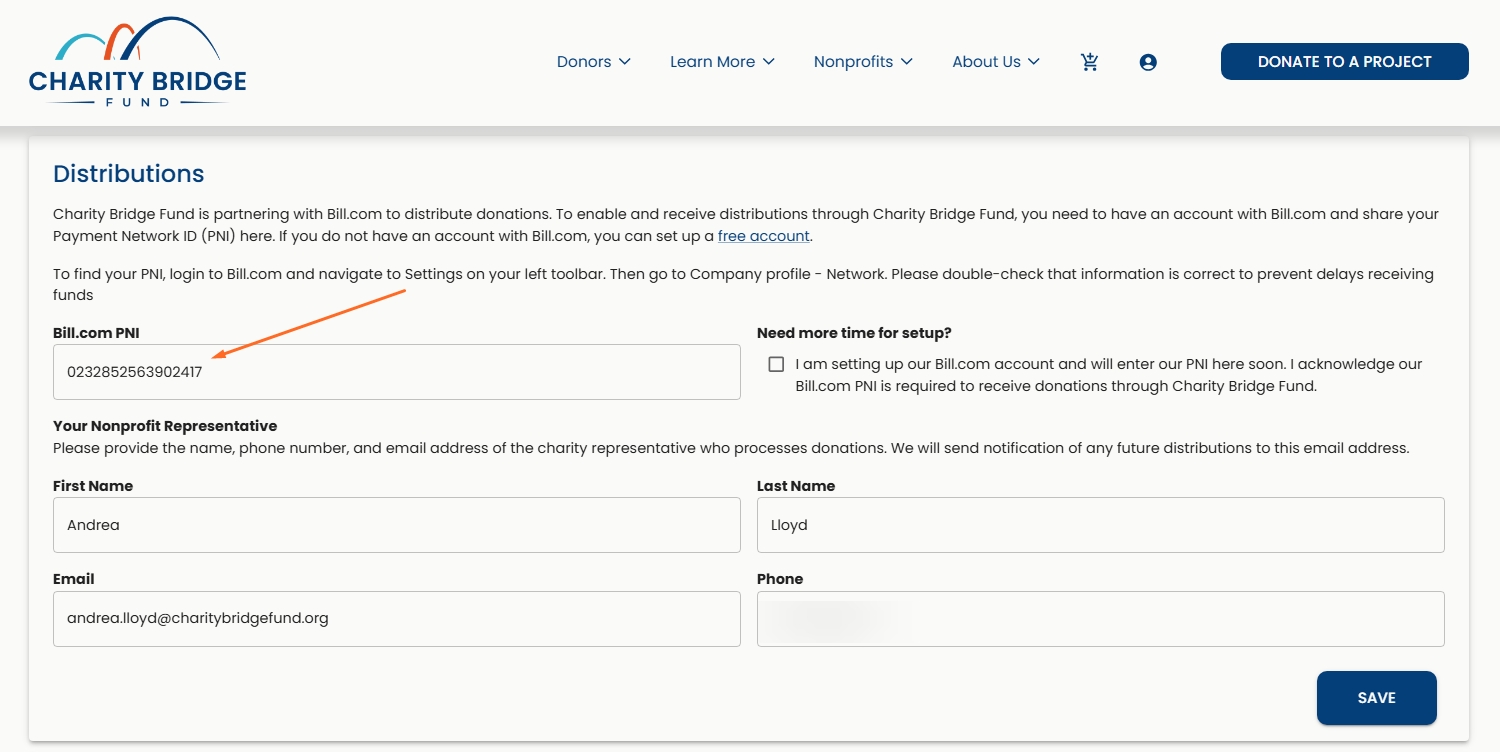
Make sure the PNI is entered exactly as it appears in your BILL account. An incorrect or missing PNI can delay distributions.
After entering the PNI, save your changes. Your organization will then be set up to receive funds through BILL when distributions become available.
Need More Time to Set Up BILL?
If your organization is still setting up its BILL account, waiting on your finance team, or needs more time to retrieve the Payment Network ID (PNI), you can select the Need more time for setup? option and return to this section later.
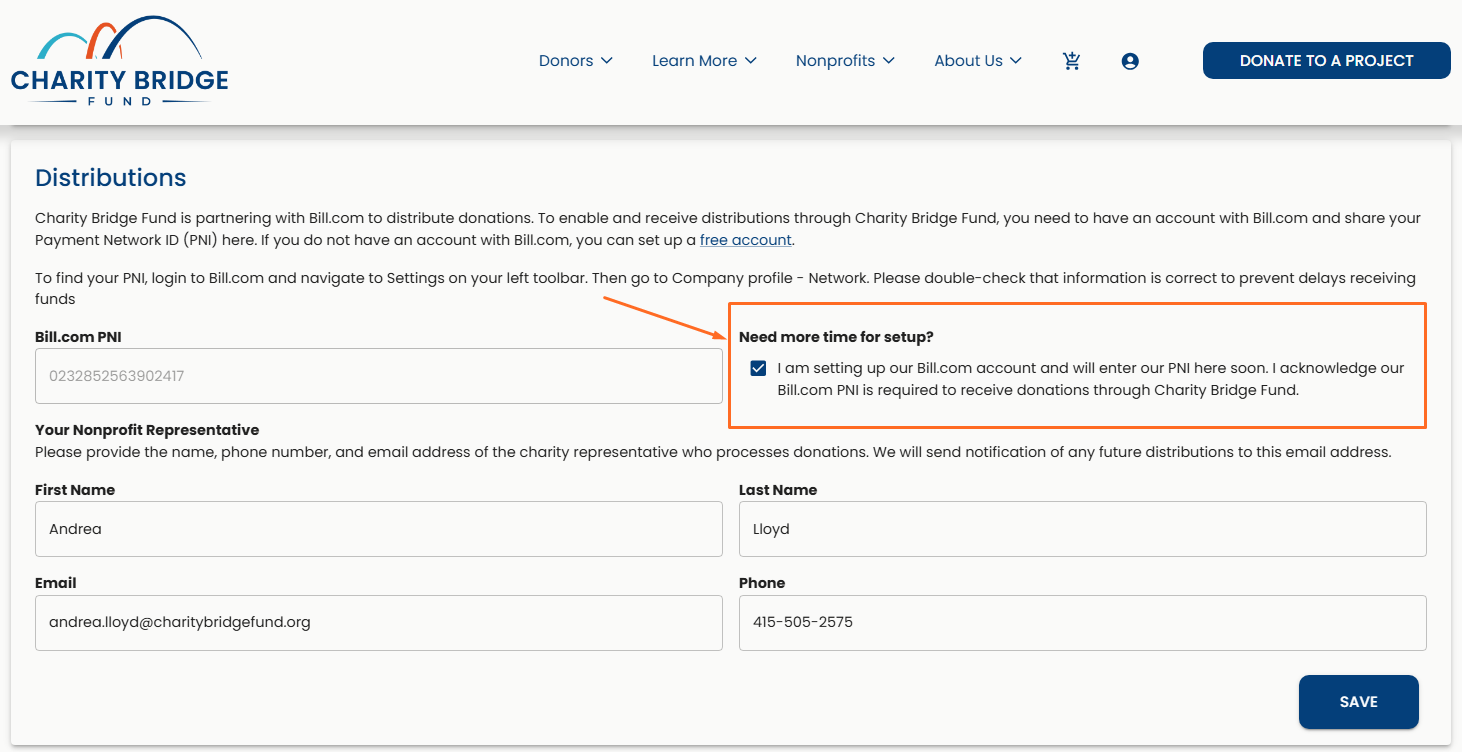
You can still complete your profile, publish, and receive donations without entering the PNI immediately. However, Charity Bridge Fund will not be able to distribute those funds through BILL until a valid PNI is provided.
When funds are ready for distribution, we will first contact the nonprofit representative listed in this section to help complete the BILL setup. If we are unable to confirm the required information, the distribution may instead be sent by check to the organization’s address on file.
Your Nonprofit Representative
Provide the contact information for the person at your organization who handles donations or financial distributions. This contact should be someone who can respond to questions about your BILL setup or incoming funds. Charity Bridge Fund will use the email address provided here to send notifications about future distributions and to follow up if additional information is needed. You will be asked to provide:
First Name
Last Name
Email
Phone
Fiscally Sponsored Organizations
If your organization operates under a fiscal sponsor, the PNI entered in the Distribution section must belong to the sponsoring organization, not the sponsored project.
In this case, funds are distributed to the sponsor’s BILL account, and the sponsor then allocates those funds to your organization through their existing processes. It’s important to confirm the correct PNI with your sponsor before adding it to your profile.
The PNI determines where funds are sent. Make sure it belongs to the correct organization (Sponsor).
FAQ
Why do I need a Bill.com account?
BILL is Charity Bridge Fund’s preferred method for distributing funds securely to your organization.
Where do I enter my Payment Network ID (PNI)?
Enter your PNI in the Distributions section of your Charity Profile.
Can I use an existing BILL account?
Yes. You can use an existing BILL account as long as the PNI belongs to the correct organization.
Can I publish my charity without a BILL PNI?
Yes. You can complete your profile, publish, and receive donations without entering the PNI immediately.
What happens if I receive donations before adding my PNI?
The donations can still be received, but Charity Bridge Fund cannot distribute the funds through BILL until a valid PNI is provided.
Who should I list as the nonprofit representative?
List the person who handles donations, financial distributions, or BILL setup for your organization.
What happens if Charity Bridge Fund cannot confirm my BILL information?
If the required information cannot be confirmed, Charity Bridge Fund may send the distribution by check to the organization’s address on file.
What PNI should a fiscally sponsored organization use?
Use the PNI that belongs to the fiscal sponsor that will receive the funds.
Setting up your BILL Payment Network ID helps Charity Bridge Fund distribute funds to your organization quickly and securely. If your PNI is not ready yet, you can continue with your profile and add it later, but completing your BILL setup as soon as possible will help prevent delays when funds are ready to be distributed.