
Overview
Strong visuals help donors understand your organization quickly and make your Charity Bridge Fund presence feel more polished and trustworthy.
This article is designed as a prompt library, not an upload guide. Use the prompts below with your preferred AI image tool whenever you need to resize, reframe, clean up, or improve an image before uploading it to Charity Bridge Fund.
Image formats used across the platform
Charity Bridge Fund currently uses two main image types for nonprofit content: your Charity Profile logo and your Project Image. Each serves a different purpose, so preparing them correctly helps your content display clearly across the platform.
Charity Profile Logo
Use your organization’s official logo so donors can quickly recognize your charity across the platform. A clean, properly centered logo helps your profile look consistent and professional.
Project Image
Choose a photo that represents the specific project and helps donors connect with the people, work, or community their support will impact. Whenever possible, use an authentic image that clearly reflects the project itself.
Charity Profile Logo
Use your organization’s official logo in a square 1:1 format, keeping the full logo visible, centered, and free from stretching or cropping. If transparency is not supported, use a clean background.
Project Image
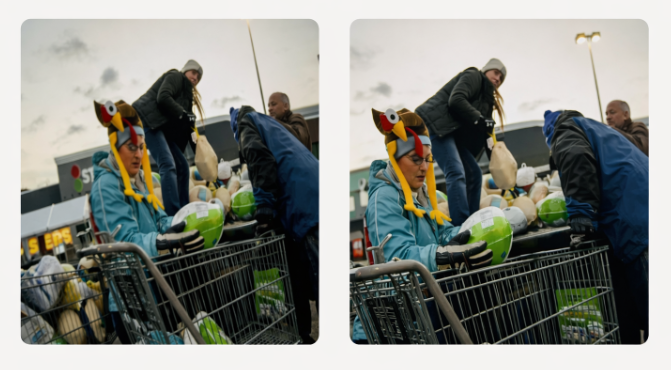
Use a 640 × 360 px image in a 16:9 format, keeping the main subject clearly visible and the composition balanced. Avoid heavy text overlays, logos, or overly designed graphics.
For the cleanest results, start with the best original image you have. A clear, well-lit image with minimal blur will give AI much better results than a small or low-quality file.
Prompt library
Below you will find the 2 prompts commonly used on our platform. Use them to handle the most common image adjustments for charity profiles and projects.
Prepare a Charity Profile Logo
Please prepare this logo for use on a nonprofit profile. Place the full logo in the center of a square 1:1 canvas. Keep the original proportions and do not stretch, distort, crop, redesign, or alter the logo. Make sure it is centered with comfortable spacing around all sides. If the original background is transparent, place the logo on a clean white background unless another background color is specified. Keep the final result sharp and professional.
Prepare a Project Image
Please prepare this image for a 640 × 360 px, 16:9 website display. Preserve the original people, subjects, and important details. Do not stretch or distort the image. Reframe or crop the outer edges as needed while keeping the main subject clearly visible and the composition balanced. If additional space is needed, extend the surrounding background naturally without adding new people, text, logos, or unrelated objects. Keep the final image realistic, sharp, and true to the original photo.
Additional Prompts
Below you'll find more helpful prompts for edge cases. Each one is designed to help you create cleaner, properly formatted visuals without stretching, awkward cropping, or unnecessary background distractions.
Replace a Distracting Background
Please replace the background of this image with a clean, simple, natural-looking background that keeps attention on the main subject. Do not change the subject’s appearance, proportions, expression, clothing, or identity. Keep the result realistic and professional, with no artificial-looking blur, harsh cutout edges, or dramatic effects.
Simplify a Background
Please clean up and simplify the background of this image while preserving the original environment. Remove or reduce visual clutter and unnecessary distractions without changing the main subject. Keep the result natural, realistic, and appropriate for a professional nonprofit website.
Improve Image Quality
Please improve the quality of this image for website use. Increase clarity and sharpness while preserving the original composition, subject, proportions, colors, and realism. Do not unnecessarily crop the image or change the background. Avoid over-smoothing, artificial sharpening, or excessive saturation.
Reframe Without Distortion
Please reframe this image so the main subject is better centered and balanced. Preserve the original proportions and do not stretch or distort the image. Crop only where necessary and keep all important people, faces, and visual details visible. Keep the final result realistic and natural.
Tips for getting better results from AI prompts
Start with the highest-quality original image available.
Tell the AI exactly what must remain visible, especially faces, people, logos, or important details.
Ask the AI not to add new people, text, branding, or unrelated objects.
Review logos carefully to make sure lettering, symbols, and proportions have not changed.
For project photos, prioritize realistic edits over heavily generated or stylized results.
If the first result is close but not correct, refine the prompt instead of accepting an image with distorted details.
FAQ
Can I use AI to resize my logo or Project Image?
Yes. The prompts in this article are designed to help resize, reframe, and clean up images without unnecessarily changing the original content.
What should I do if AI changes my logo?
Do not use the edited version. Your logo’s design, lettering, colors, and proportions should remain unchanged. Try again with a stricter prompt that asks AI only to resize, center, or prepare the canvas.
What if my Project Image is cropped badly?
Try the Project Image prompt again and specify what needs to remain visible, such as a person, face, group, or important part of the scene.
Can I use a stock image for my project?
You can, but an authentic image connected to the actual project is usually more effective because it gives donors a clearer sense of the work being supported.
What file size should I aim for?
Around 500 KB or less is a good target when possible, as long as the image still looks clear and sharp.
Well-prepared images help your Charity Profile and Projects look clearer, more consistent, and easier for donors to understand. Use these prompts to prepare your logo and Project Image without stretching, distorting, or unnecessarily altering the original content.
If additional help is needed, contact nonprofits@charitybridgefund.org.